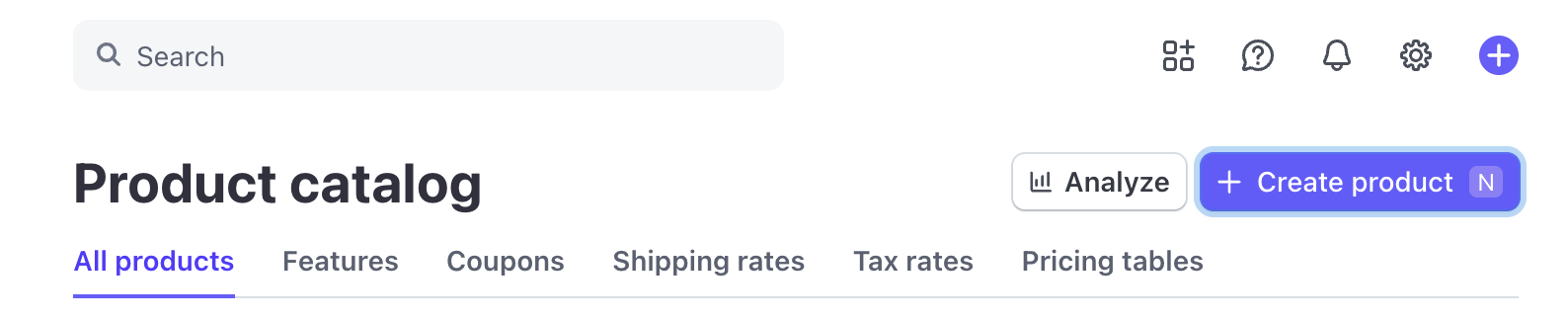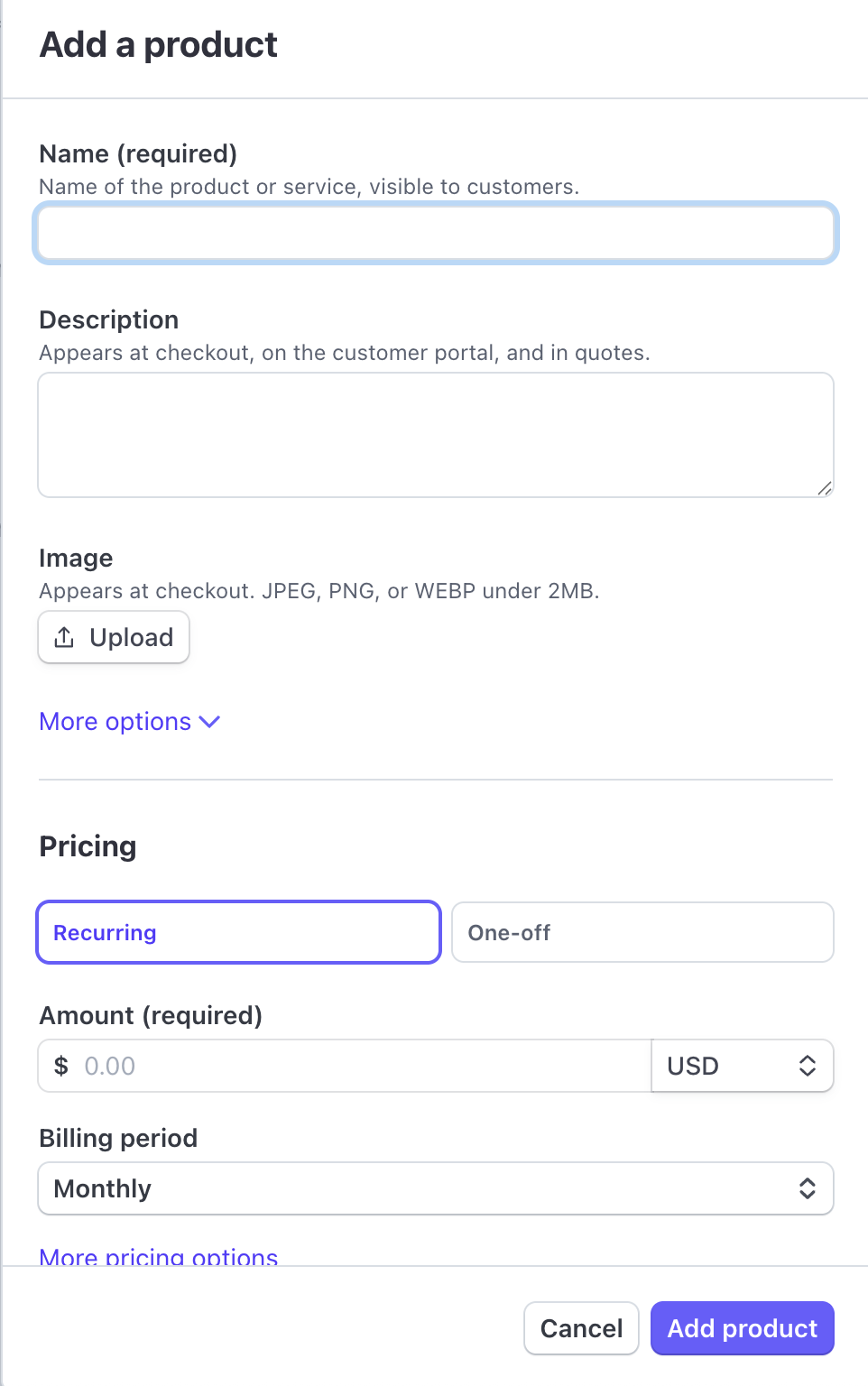
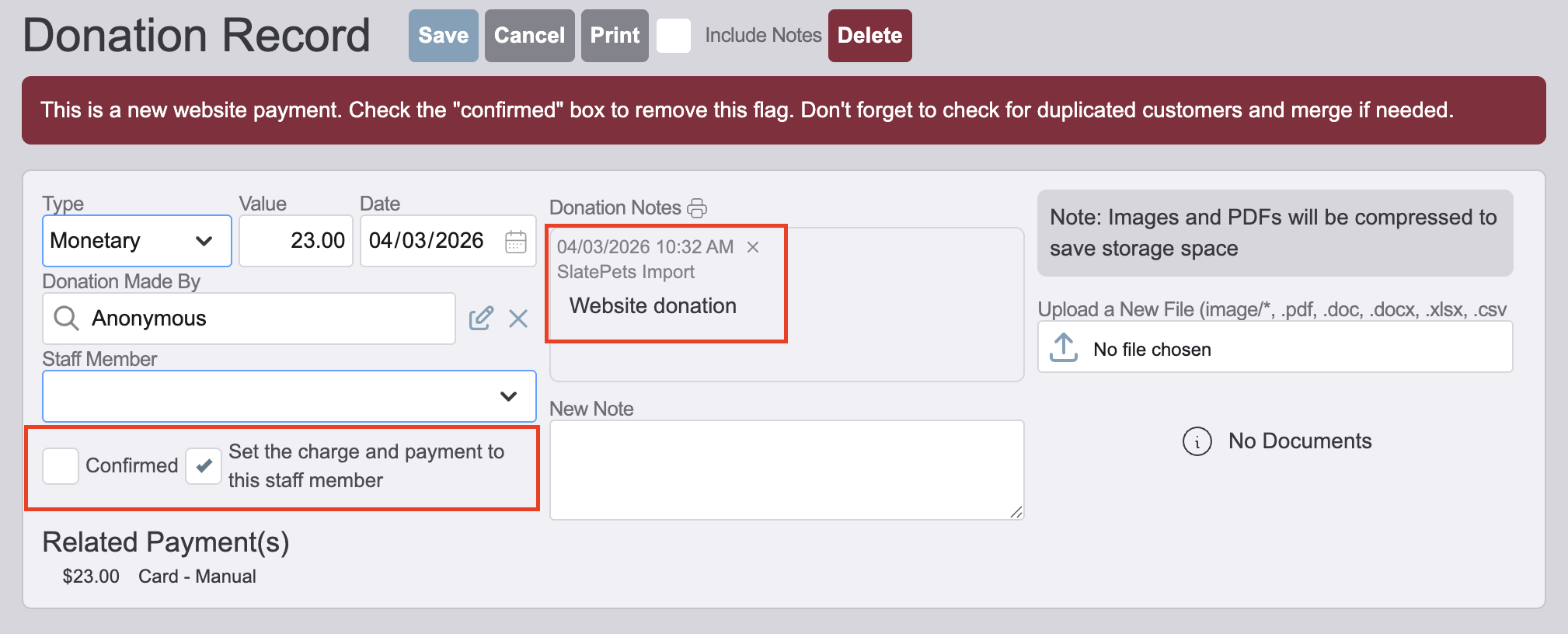
If you are using Stripe for credit card payments, you send customers to a URL where they can make donation payments on their own. Donations created from the portal will show up with a red "Unconfirmed Web" flag on the donation search screen. When you open up these web donations, you confirm the new donation by checking a box. You'll also see an option to change the staff member that processed the charge and donation to the selected staff, if you wish to change it from the default "SlatePets Import" user.
To set-up, go to Settings | Portal to view the donation related settings and the URL where you can send people to for easy payments. Here you have the option to allow guest donations (no login or registration required) and how to handle the person record when someone pays as a guest. You can also embed a "simple" version of our portal onto your own website using the suggested HTML code. This will make it appear as if the donation system is built into your existing site. Don't forget to set your branding color under the "Company Information".
If in the settings you chose to have the donation portal create new people for guest payments, you'll need to also manually check for, and possibly merge, duplicated customers as the new guest user might have already had an person record.
Any subscription-type product in your Stripe dashboard will automatically be listed on the donation portal when the customer chooses the "Recurring Subscription" option.