
Printouts are available on various screens throughout SlatePets. The main printout popup is available from the case, animal and person screens. In this popup you have the option to choose which documents you'd like to print, save as PDF, or email.
There are many common forms already available in the system. You can control the content of those forms from the printout section of the settings screen. On the text editor you can also paste images in order to add photos or create more advanced forms.
You also have the option to create your own printouts, found at the bottom of the printout settings screen.
Which screen the custom printout is available on is determined in the printout's settings. If you choose to include the animal info in the printout, it'll only be available on the case and animal screens. If no animal is required, it will also show up on the person printouts.
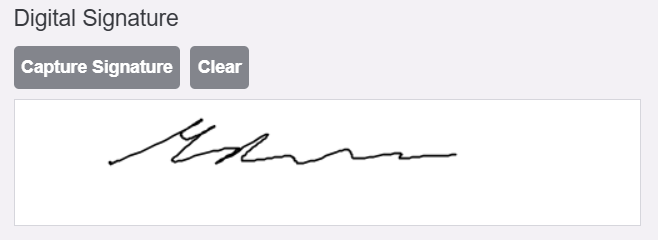
Digital signatures are only applied to the documents selected at the the time of signing. Make sure to print, save, or email the signed document when done. If no digital signature is added, the signature text from the printout settings screen (if any) will be inserted instead.
You can use the printout settings screen to control which printouts have signatures.
SlatePets has the ability to read a Topaz Signature Pad, such as the T-S460-HSB. To enable this feature you need to:
- Download and install the SigWeb software
- Have a Topaz Signature Pad plugged into the computer you're using
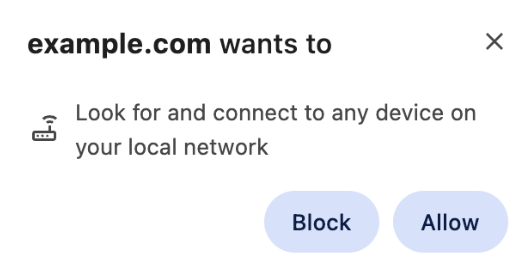
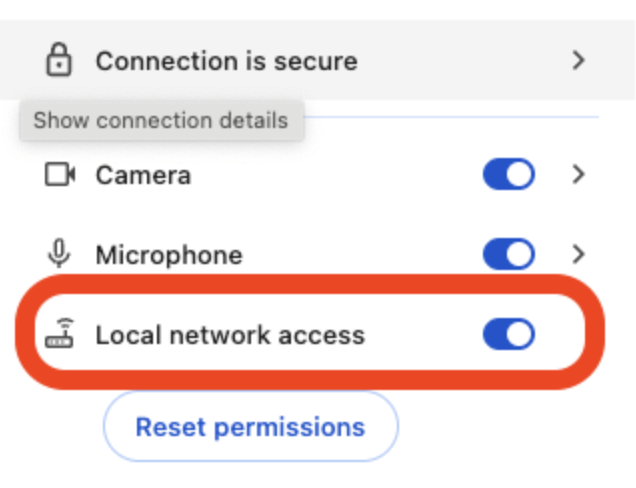
Once you have it connected and installed. SlatePets will automatically recognize it and you'll see additional actions available on the printout popup.
- Visit SlatePets using a tablet and go to the printout screen of the document you want signed.
- Next to the document, click on the icon next to the document name.
- Hand the tablet to the customer and have them read and sign the document at the very bottom.
- Once done, press save, or email and save.
A video of this process is below